
Install and set up TickPax
From the Marketplace to your team's first AI time proposals. Most organizations finish in about 10 minutes.
Before you start
Every item below is a real failure point during setup. Checking them first takes two minutes and saves a support thread.
- Your Azure DevOps organization is connected to Microsoft Entra ID. Check under Organization settings → Microsoft Entra. If that page offers to connect a directory instead of naming one, see why TickPax requires it.
- You are a Project Collection Administrator. Check under Organization settings → Permissions → Project Collection Administrators.
- Your access level is Basic or higher, not Stakeholder. Check under Organization settings → Users. Stakeholder accounts cannot read repositories, so TickPax would see no commits or pull requests.
- You know whether your tenant lets users consent to apps. If it does not, book five minutes with an Entra administrator. See Do you need an Entra administrator?
- Pop-ups are allowed for
dev.azure.comin your browser. The Microsoft sign-in opens in a pop-up. - Outbound HTTPS to
api.tickpax.comis allowed from your network. No inbound firewall change is needed.
| Step | Who | Role required |
|---|---|---|
| Install the extension | Azure DevOps admin | Project Collection Administrators (or Manage extensions permission) |
| Register the organization | Same admin | Project Collection Administrators. TickPax verifies this itself |
| Approve the Microsoft consent screen | The connecting admin, or an Entra admin | No Entra role if your tenant allows user consent. Otherwise Cloud Application Administrator or higher |
| Activate team members | A TickPax Admin | TickPax role only. No Azure DevOps or Entra role |
One person who is a Project Collection Administrator and allowed to consent in Entra ID can complete the whole installation alone.
1 Install the extension
- Open the TickPax listing on the Visual Studio Marketplace and select Get.
- Choose your Azure DevOps organization from the list.
- Review the permissions the extension asks for (explained in Extension scopes) and select Install.
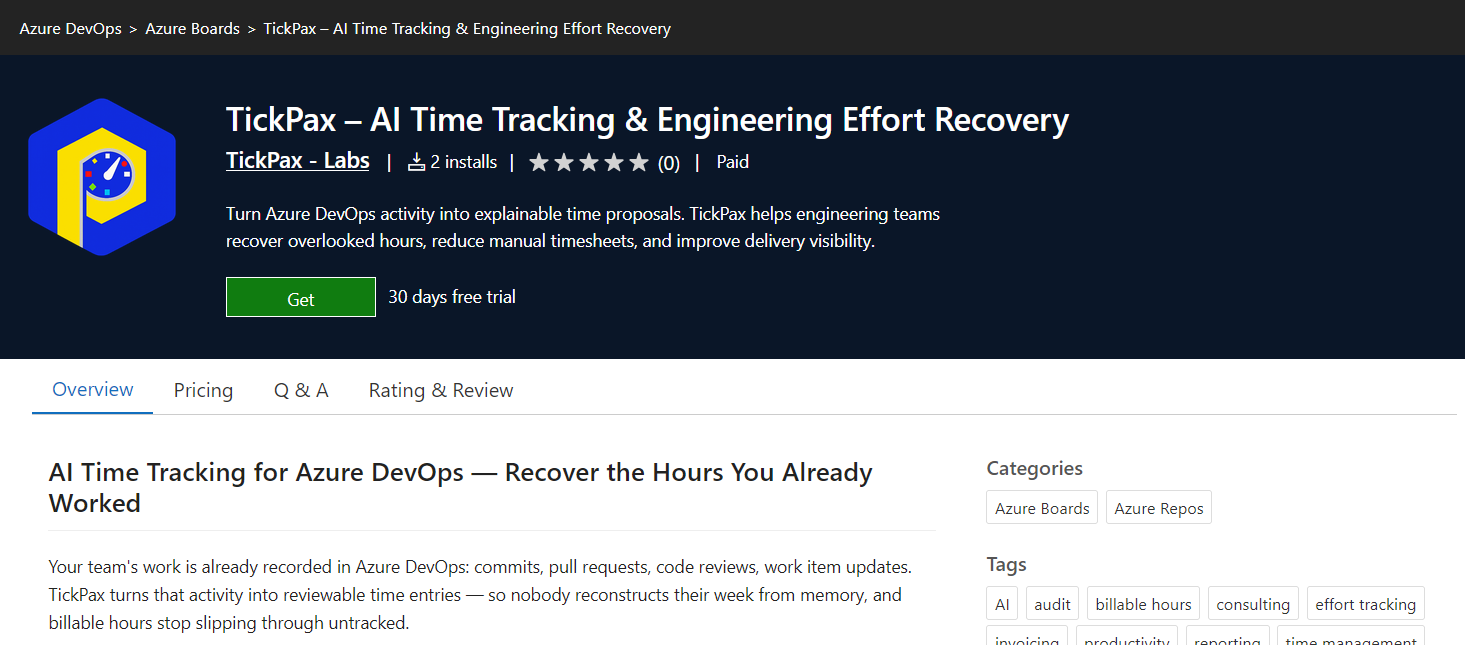
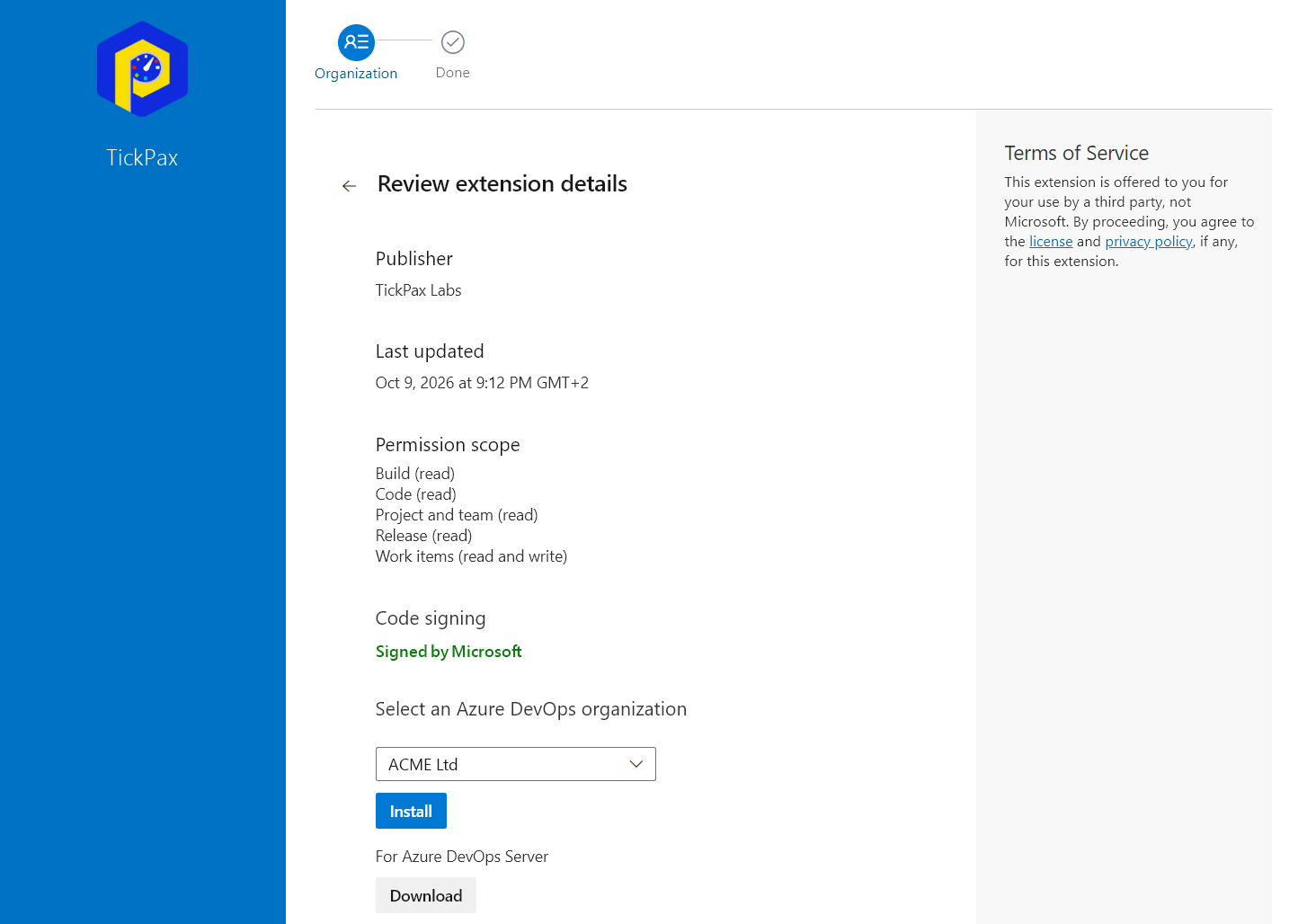
See "Request" instead of "Install"? You are not a Project Collection Administrator. The request goes to your organization's administrators, who approve it under Organization settings → Extensions → Requested. This is an Azure DevOps control, and TickPax cannot bypass it.
2 Open TickPax in Organization settings
In Azure DevOps, select Organization settings (bottom-left corner), then TickPax in the left menu. The first time you open it, the Setup (Required) tab shows the setup wizard.

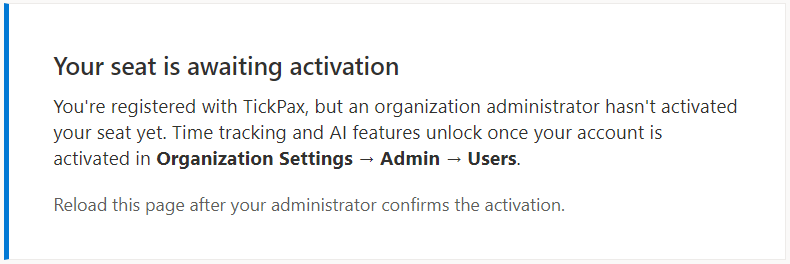
Until registration is complete, anyone who opens TickPax inside a project sees the message below instead of their data. It goes away by itself once you finish step 3.
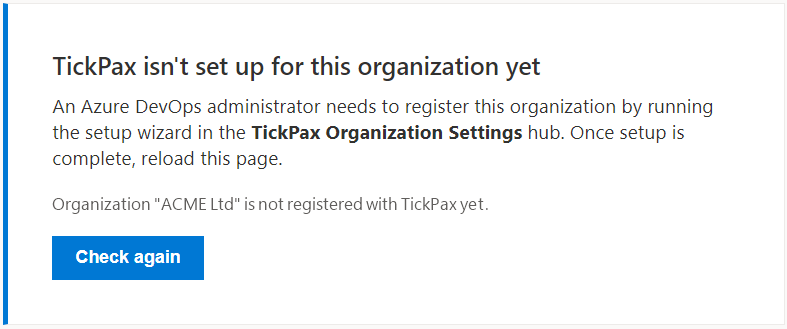
3 Register your organization
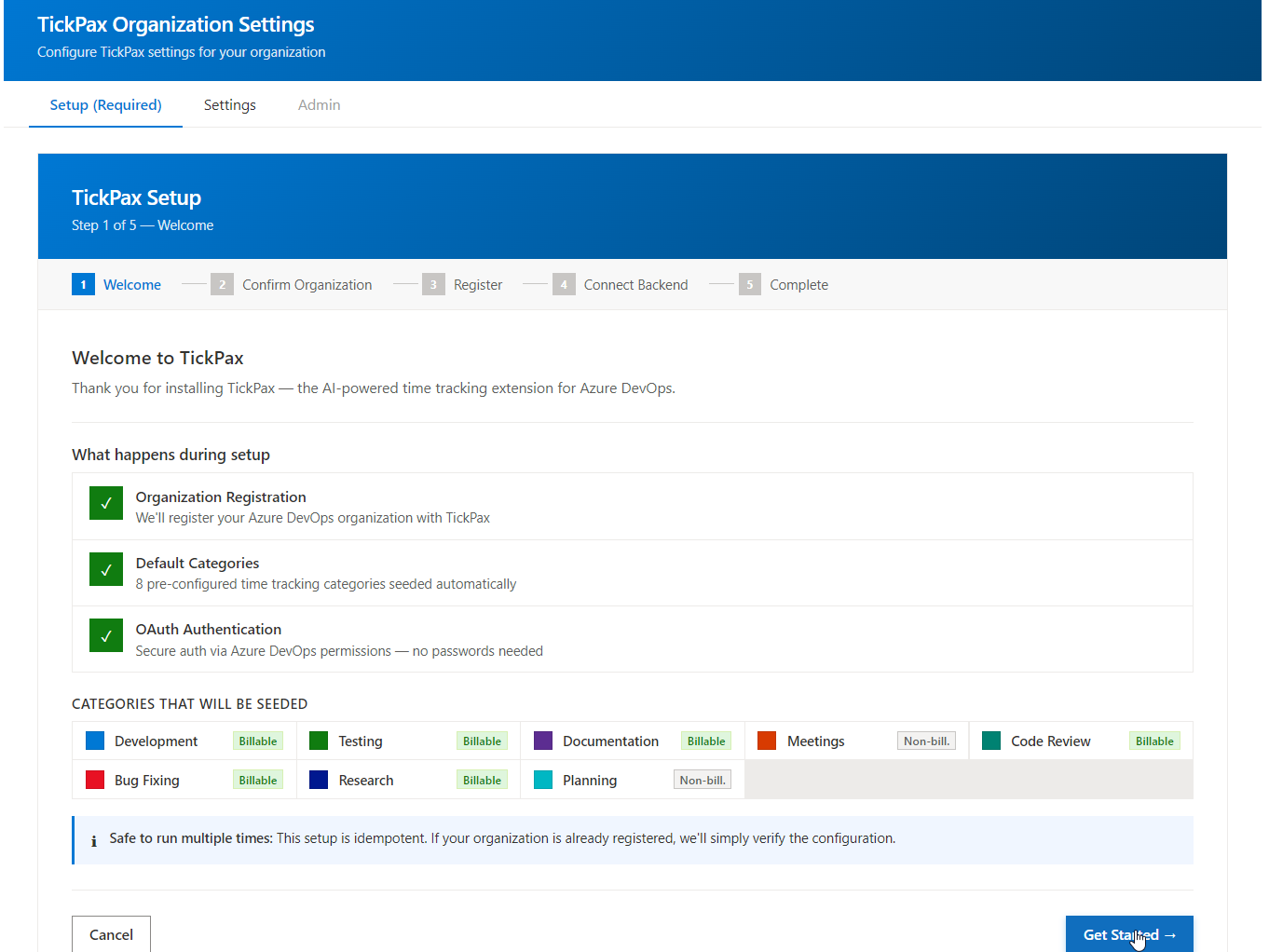
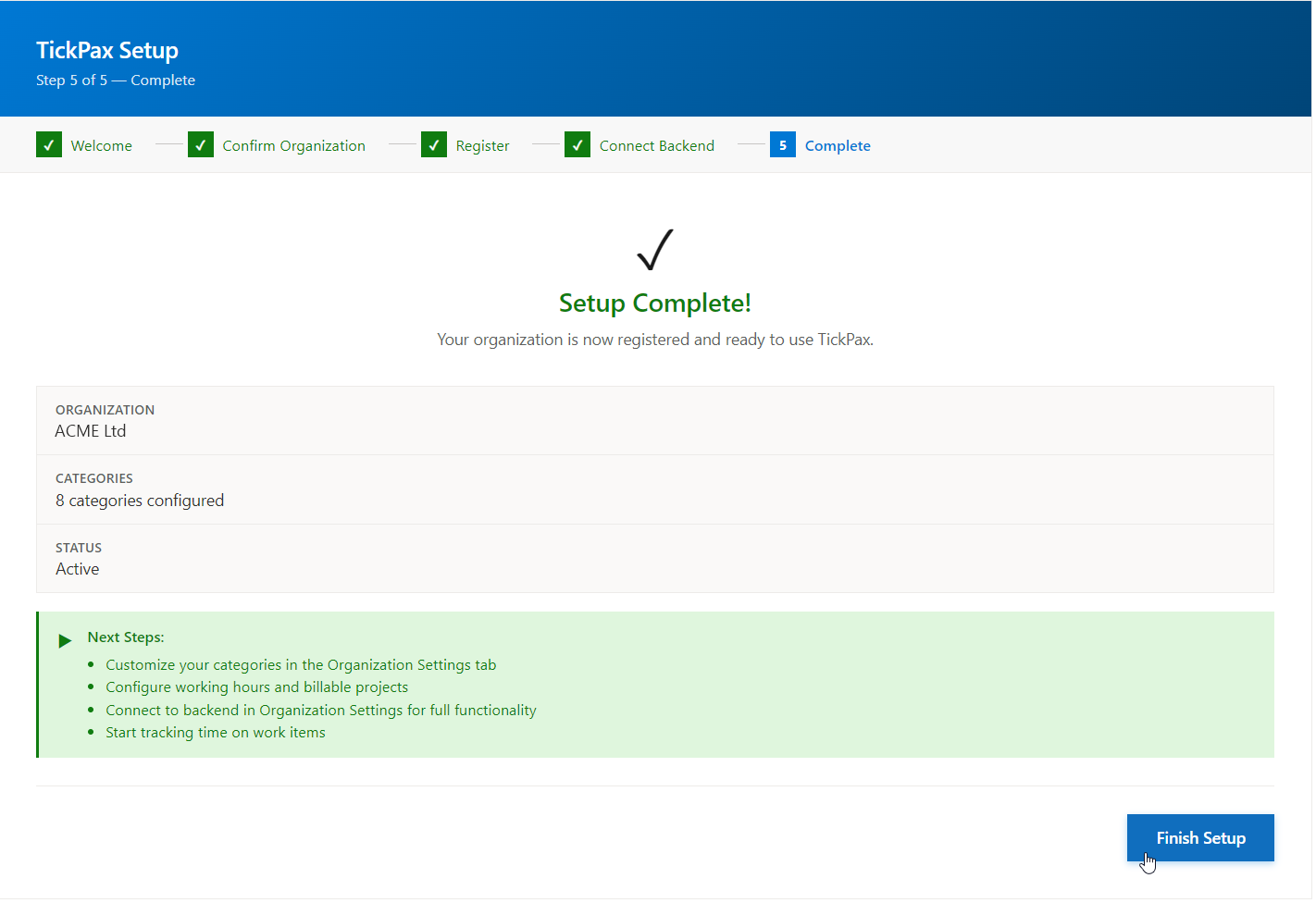
The wizard has five steps: Welcome → Confirm Organization → Register → Connect Backend → Complete. Registration is the only way a TickPax organization is created, and running it again is safe: an already-registered organization is simply verified.
Welcome
This step shows what setup does, including the eight default time categories it will create: Development, Testing, Documentation, Code Review, Bug Fixing and Research (billable), and Meetings and Planning (non-billable). You can rename, recolor or remove them later. Select Get Started.
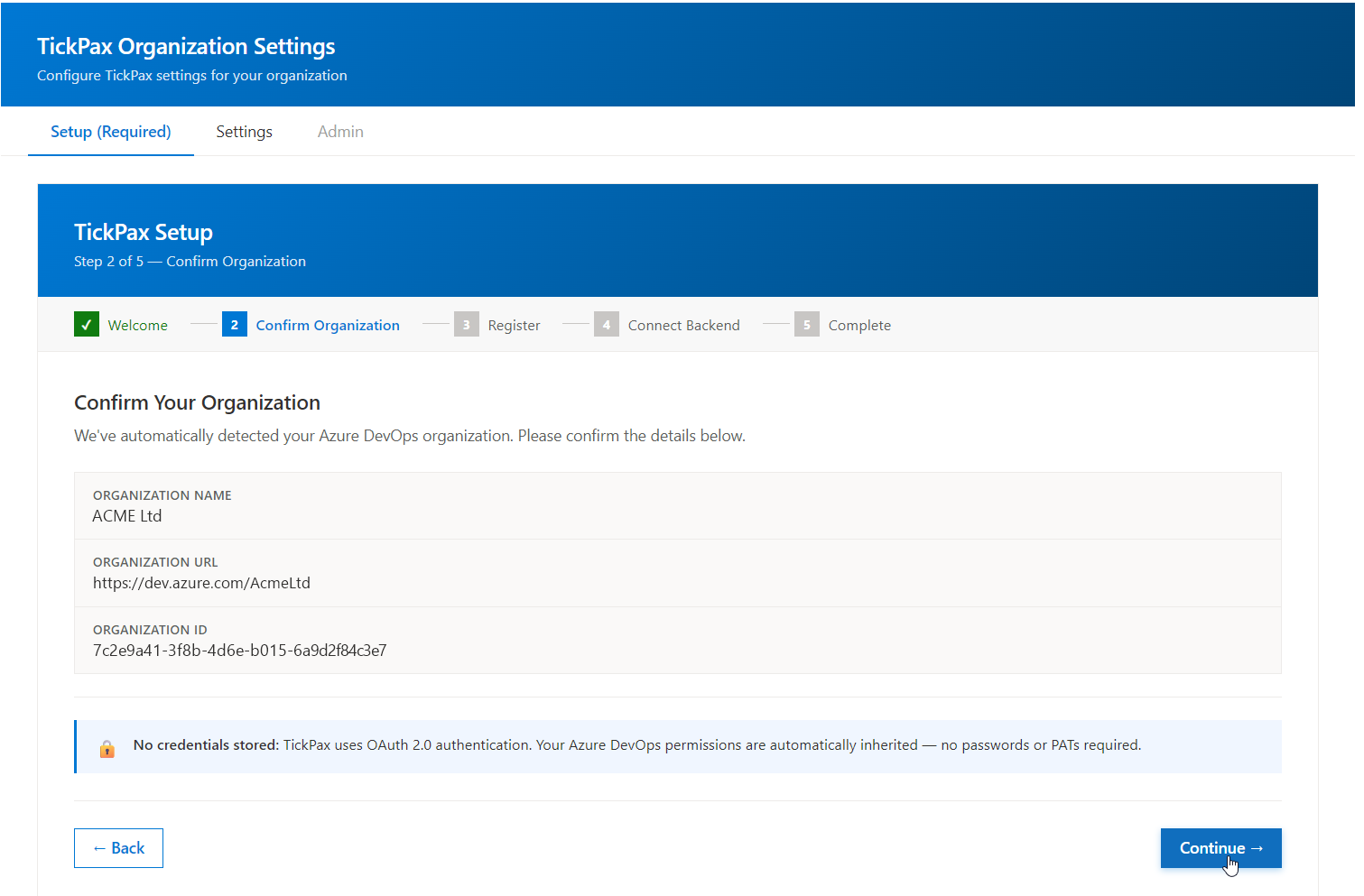
Confirm Organization
TickPax reads your organization's name, URL and ID directly from Azure DevOps, so there is nothing to type. Check that it is the organization you intend to set up, then select Continue.
Register
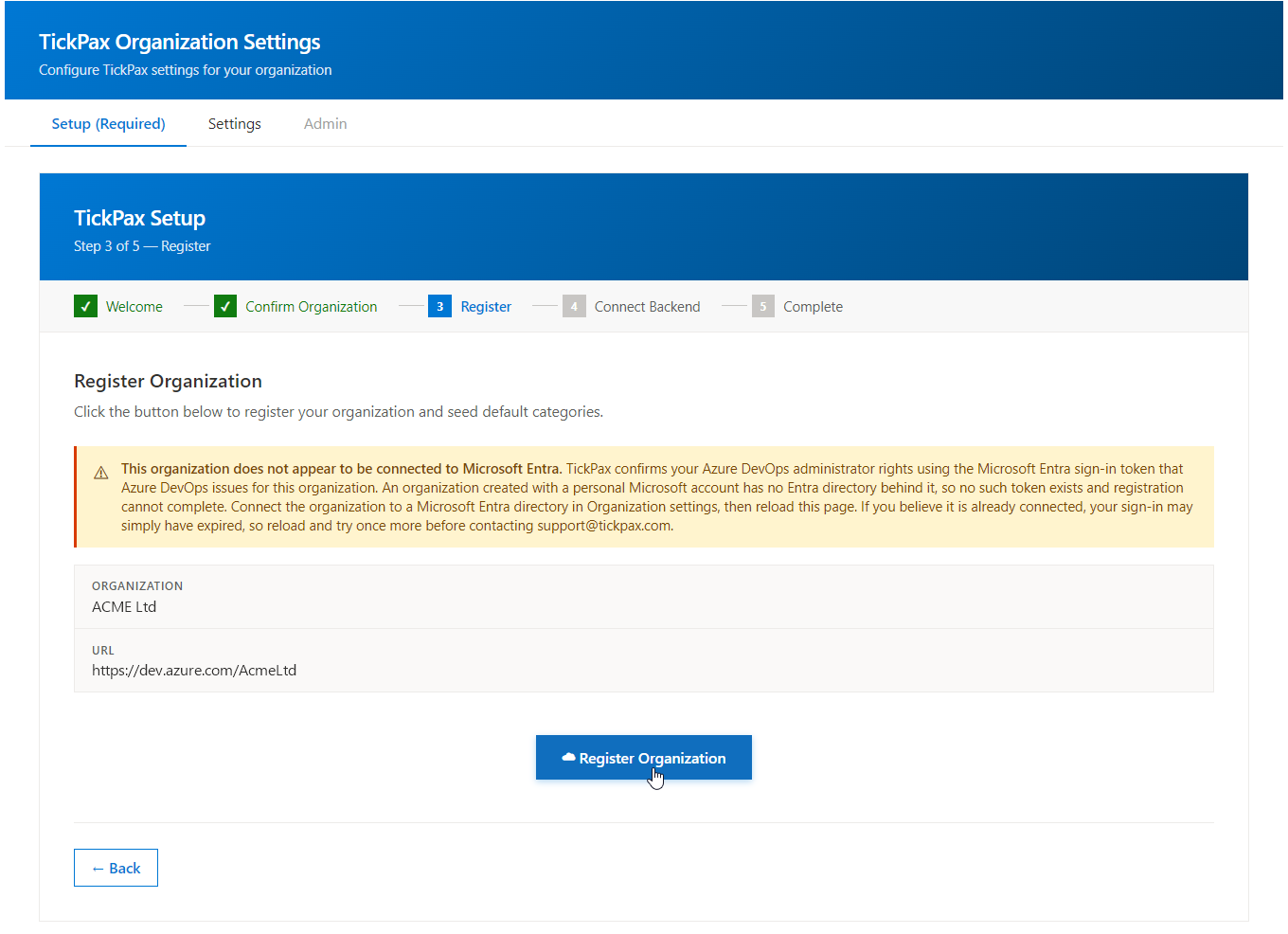
Select Register Organization. TickPax then:
- confirms you are a Project Collection Administrator, by asking Azure DevOps directly with your own sign-in. A Project Administrator on a single project cannot register an organization;
- creates your TickPax organization on the Free plan and adds the default categories;
- makes you its first TickPax Admin.
When Registration Complete! appears, select Connect Backend.

"This organization does not appear to be connected to Microsoft Entra." TickPax confirms who you are, and that you are an administrator, from the Microsoft Entra sign-in token Azure DevOps issues for your organization. An organization created with a personal Microsoft account has no Entra directory behind it, so that token does not exist and registration cannot finish. An organization owner can connect a directory under Organization settings → Microsoft Entra (a free Entra tenant is enough). Then sign out of Azure DevOps, sign back in, and run the wizard again.
4 Connect TickPax to Azure DevOps
This step lets TickPax read your organization's activity in the background, when nobody has TickPax open.
- Select Connect to Azure DevOps. A Microsoft sign-in window opens.
- Sign in with your work account. If TickPax has not been approved in your tenant yet, Microsoft shows a permission request: select Accept. If it has already been approved, for example by an Entra administrator for the whole organization, there is nothing to accept and the window closes on its own right after sign-in.
- The button changes to ✓ Connected, with the date the current access token expires. TickPax renews it automatically.
- Select Continue, then Finish Setup.
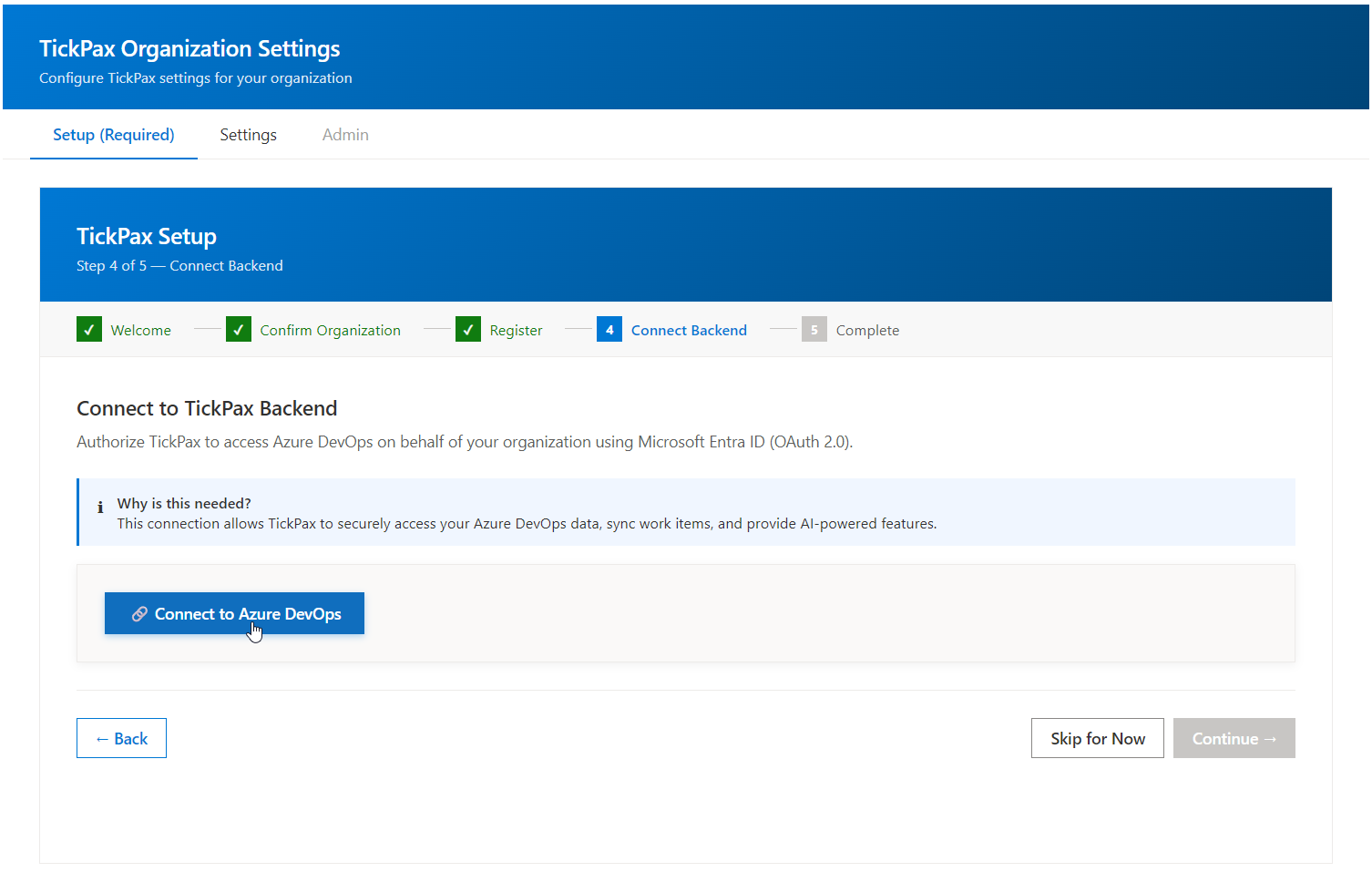

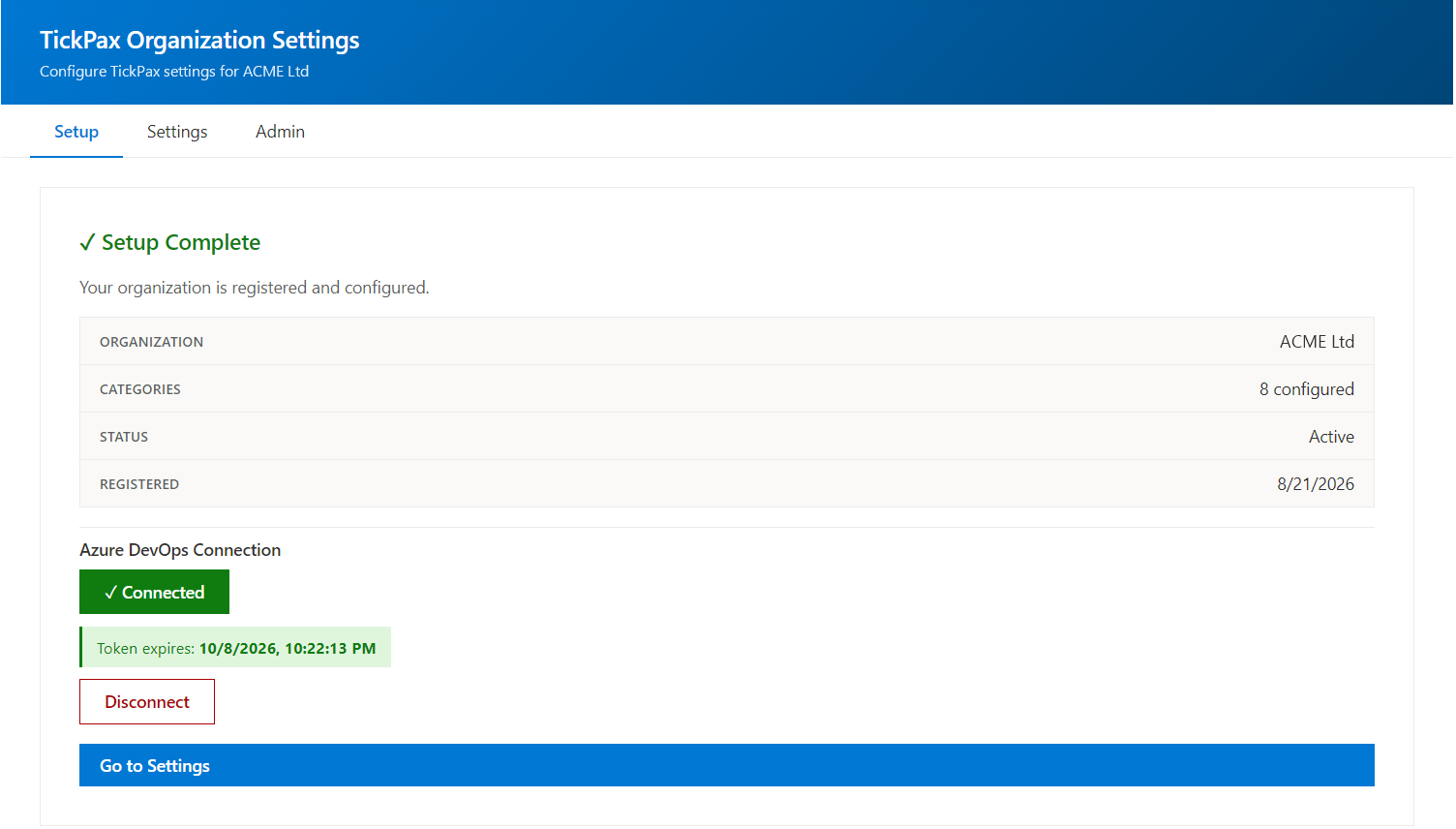
Skip for Now also finishes setup without connecting. TickPax then cannot read any activity, and the summary screen reminds you to connect later: open the Setup tab again and select Connect to Azure DevOps.
Which account should connect?
TickPax acts as the account that connects, with exactly that account's permissions and nothing more. That has two consequences:
- TickPax only sees what that account can see. If the account has no access to a project, that project's activity is invisible to TickPax. This is the most common cause of "TickPax isn't seeing my work".
- The account should be a Project Collection Administrator with a Basic license. TickPax uses it to list your organization's members, to create service hooks in each project, and to read repositories, pull requests and work items.
Larger organizations: connect with a dedicated named account, for example svc-tickpax@yourcompany.com, that is a Project Collection Administrator with a Basic license. A personal account works, but the connection breaks when that person leaves or their permissions change.
What happens next, automatically
Within a few minutes of connecting, TickPax:
- discovers every project the connecting account can see, and picks up new projects as they are created;
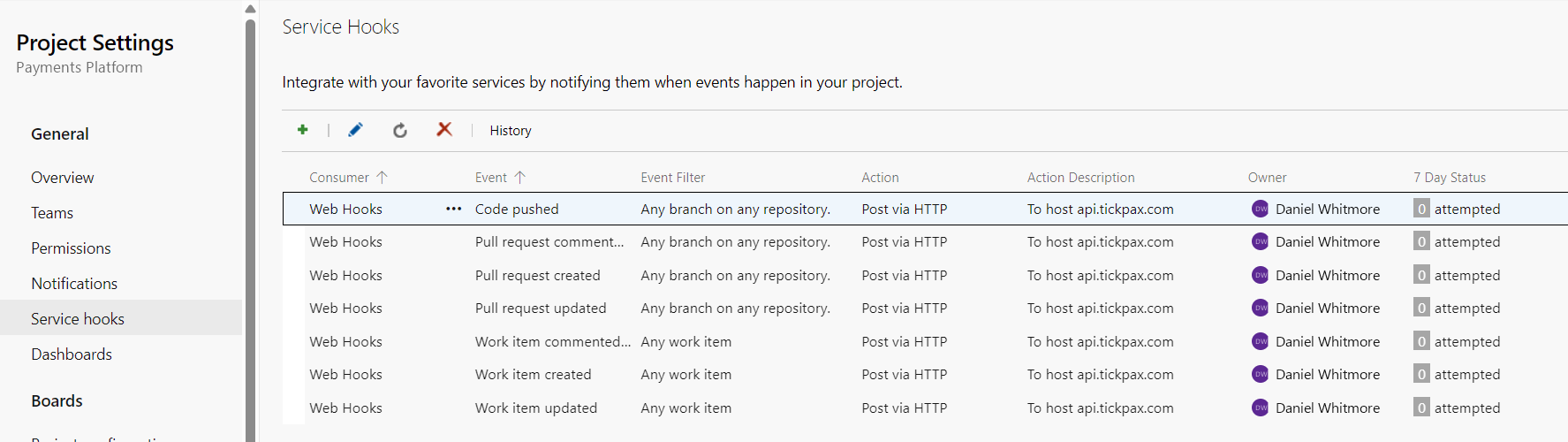
- creates seven service hook subscriptions in each project, so activity reaches TickPax in near real time:
git.push,git.pullrequest.created,git.pullrequest.updated,ms.vss-code.git-pullrequest-comment-event,workitem.created,workitem.updatedandworkitem.commented.
You can see them under Project settings → Service hooks. Registration is idempotent, so reconnecting never creates duplicates.
5 Review your settings
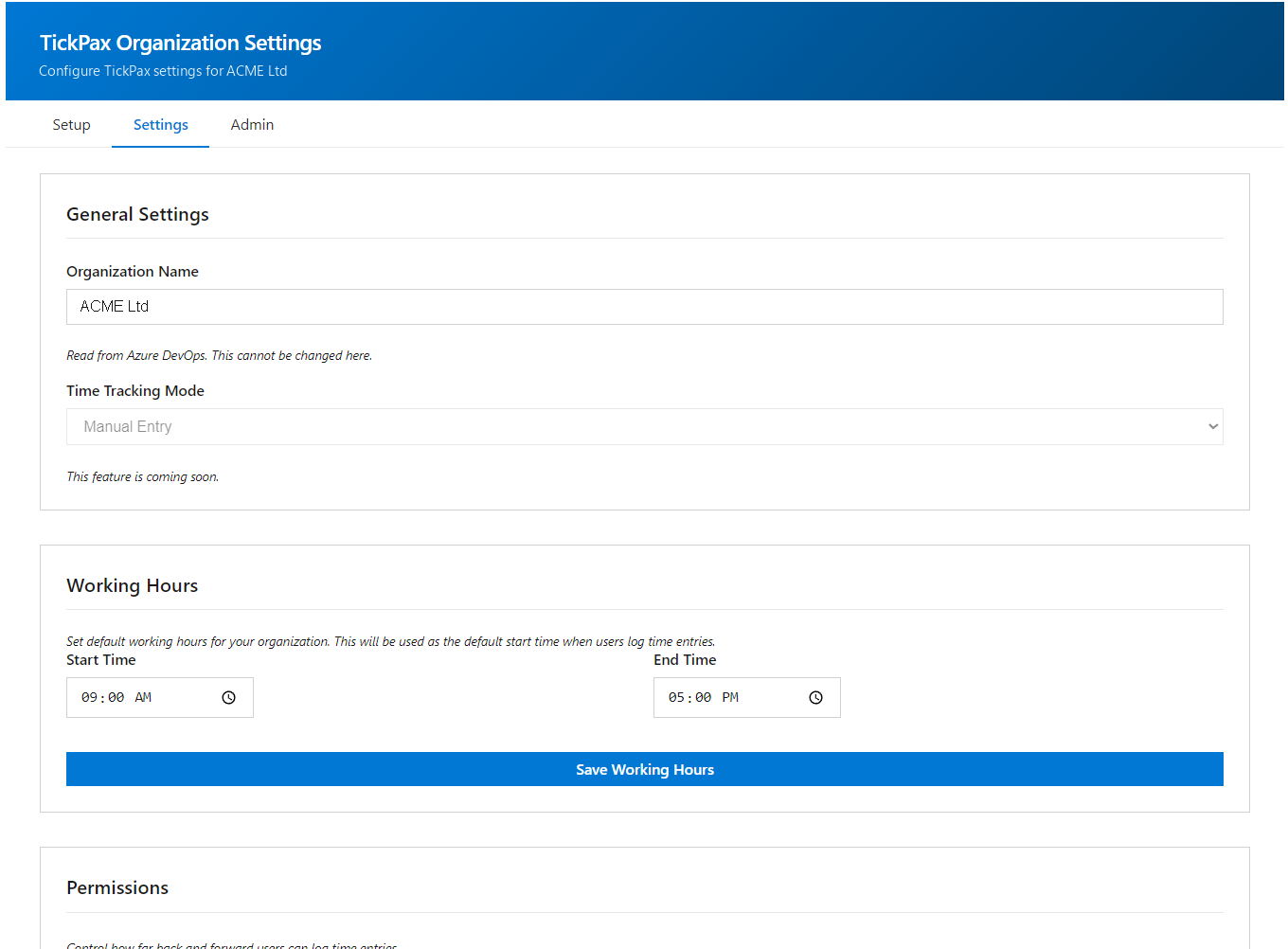
Open the Settings tab. The defaults work, but a minute here makes the first proposals more accurate:
- Working Hours: your team's normal working day.
- Categories: rename, recolor or add categories, and set which ones are billable.
- Projects: mark each project as billable or non-billable. This applies everywhere, including reports.
6 Add your team
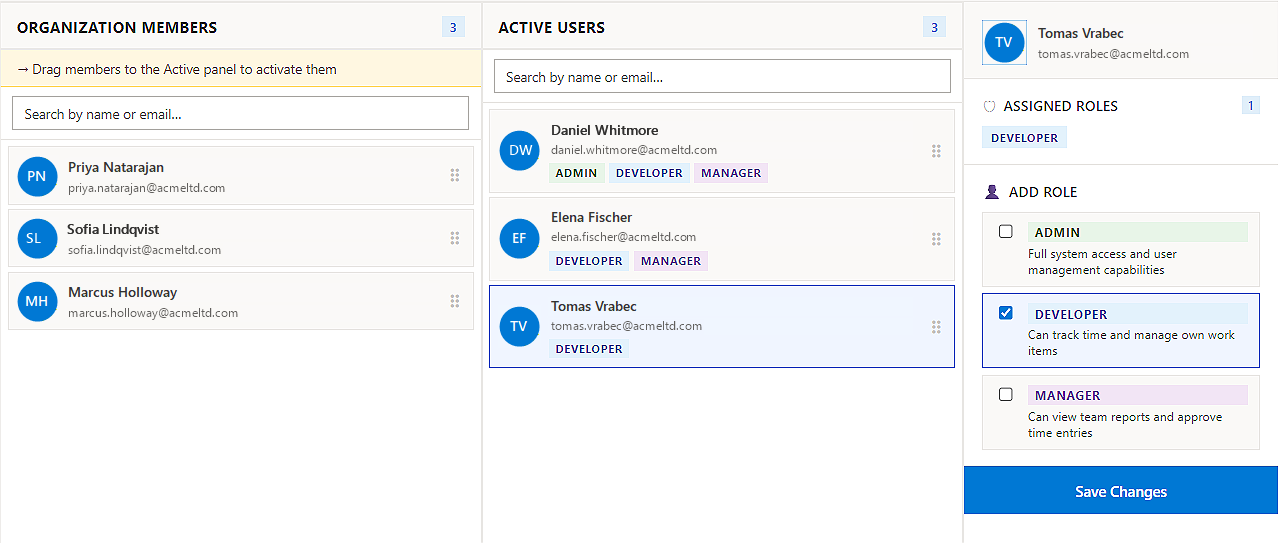
Nobody sees any data until an Admin activates them. Open the Admin tab, then Users.
- The Organization Members column lists your Azure DevOps organization's members. You can activate people before they have ever opened TickPax.
- Drag a member into Active Users.
- In the panel on the right, tick at least one role:
- Developer reviews their own proposals and logs their own time;
- Manager also sees team reports and approves time entries;
- Admin has full access, including users, settings and billing.
- Select Activate User. Access takes effect immediately.
The Free plan includes up to five active users. On a paid plan, every active user is one seat. Adding a user raises your seat count right away, and removing one takes effect at your next renewal.
If someone opens TickPax before you activate them
They are registered automatically and see the message below until an Admin activates them. They appear in your Organization Members column, ready to drag across. Once activated, they reload the page.
Licenses: a team member needs a Basic Azure DevOps access level to generate meaningful activity. Stakeholders can be activated, but they produce no commit or pull request signal.
7 Choose a plan (optional)
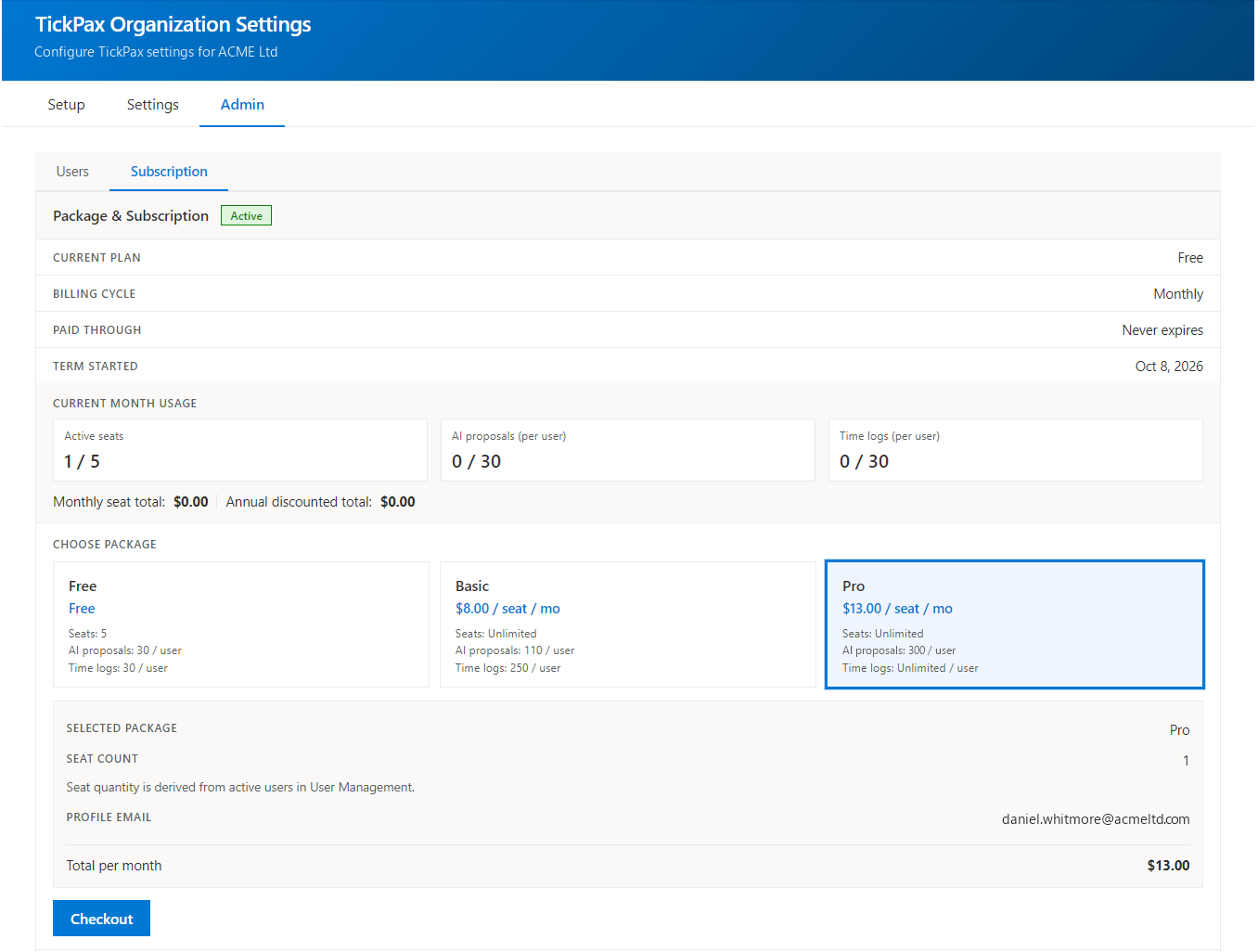
Every organization starts on Free: up to five active users, with the full feature set. To move a larger team onto TickPax, open Admin → Subscription:
- Under Choose package, select Basic or Pro, and choose a monthly or annual billing cycle.
- Check the seat count and the total. You don't type the seat count in: it is the number of active users under Admin → Users.
- Select Checkout. Payment is handled by Dodo Payments, our Merchant of Record, which issues your invoice and handles sales tax and VAT.
Paid plans start with a 30-day free trial. You are not charged until it ends, and adding teammates during the trial does not trigger an early charge. Plans and limits are listed on the pricing page.
8 Start using TickPax
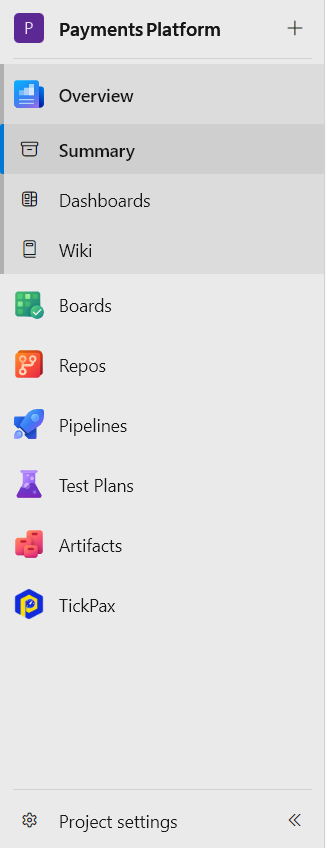
Team members need no setup. In any project, they open TickPax in the left menu. Opening it signs them in through Azure DevOps, with no password, separate account or personal access token.
- Time Recovery: daily and weekly AI proposals to review, edit, accept or reject.
- Calendar: logged time across the month, and manual entries.
- Insights: team reports, AI accuracy and recovered hours, for Managers and Admins.
- A TickPax tab on every work item, for time against that item.
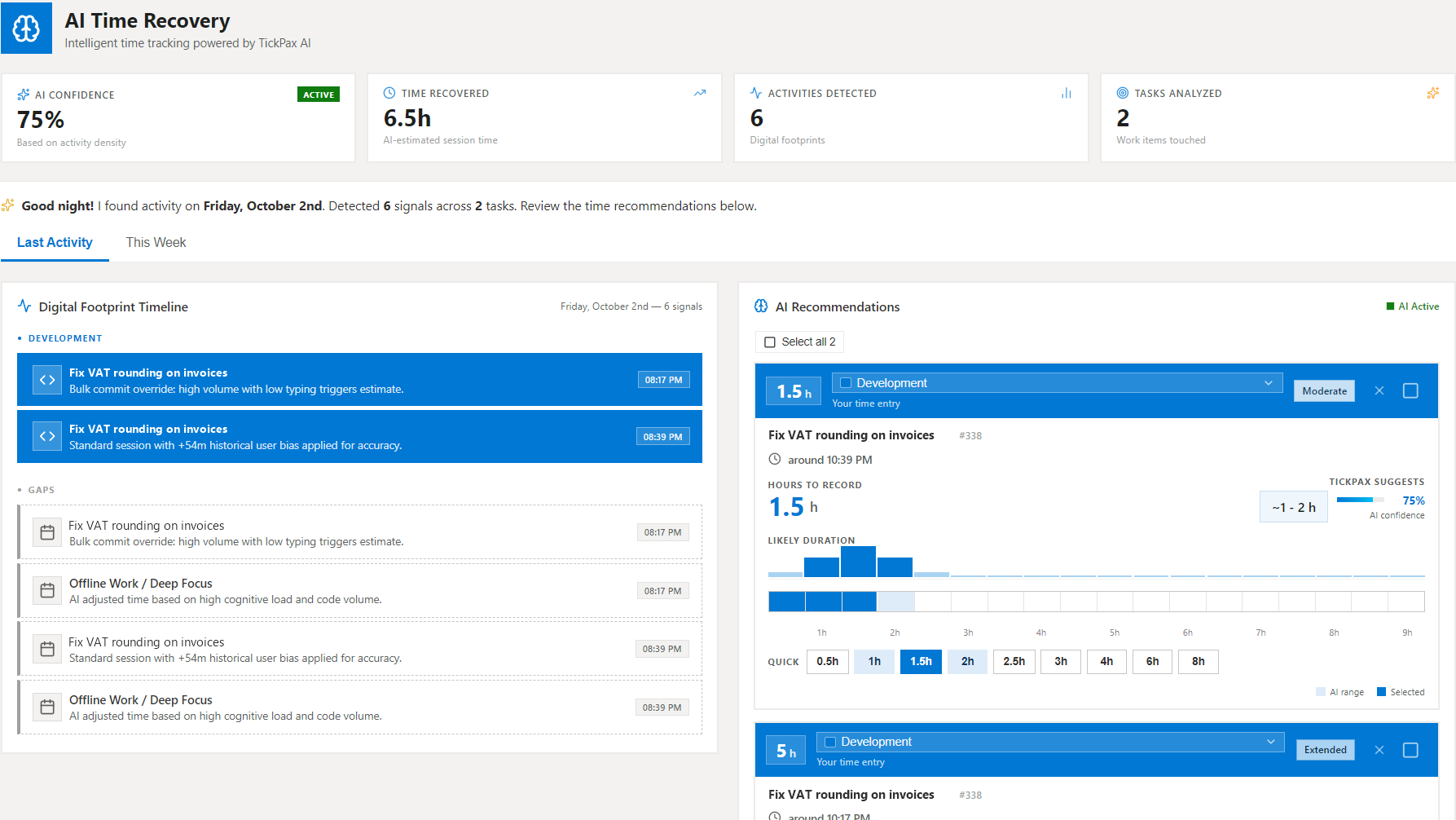
TickPax reads your existing Azure DevOps history, so the first proposals can appear the same day. New activity typically turns into a proposal within minutes of a commit or pull request comment. Nothing is ever logged without a person approving it.
For your Microsoft Entra administrator
Do you need an Entra administrator?
That depends on one tenant setting: Entra admin center → Enterprise applications → Consent and permissions → User consent settings.
| Your tenant setting | What happens |
|---|---|
| Allow user consent for apps (Microsoft's default) | The connecting admin selects Accept. No Entra administrator needed. |
| Allow user consent for apps from verified publishers, for selected permissions | Usually works. If Azure DevOps user_impersonation is not on your allow-list, use the admin path below. |
| Do not allow user consent | The user sees error AADSTS65001 or an "approval required" screen. An administrator must grant consent. |
Granting admin consent
Any one of these Entra roles can approve TickPax: Cloud Application Administrator (recommended, least privilege), Application Administrator, Privileged Role Administrator or Global Administrator.
Option A: the Entra admin connects. If the Entra admin is also a Project Collection Administrator, they run step 4 themselves and tick Consent on behalf of your organization.
Option B: pre-approve, then connect. The Entra admin opens this address once, signs in and approves. The Azure DevOps admin then completes step 4 with no consent prompt.
https://login.microsoftonline.com/<your-tenant-id>/adminconsent?client_id=aa79e623-77cb-403c-a260-8e9a1bc9a739If your tenant uses the admin consent workflow, the user can instead request approval from the consent screen. Reviewers approve it under Enterprise applications → Admin consent requests.
The application
| Application name | TickPax |
|---|---|
| Application (client) ID | aa79e623-77cb-403c-a260-8e9a1bc9a739 |
| Type | Multi-tenant confidential client, authorization code flow with PKCE (S256) |
| Redirect URI | https://api.tickpax.com/api/oauth/callback |
| Permissions | Azure DevOps user_impersonation (delegated), plus openid, profile, offline_access |
TickPax requests no Microsoft Graph permissions, no application-only permissions, no mail or file access, and no personal access tokens. After the first connection, it appears under Enterprise applications → All applications → TickPax, where you can review, restrict or remove it.
"Full access to Azure DevOps": what the consent screen means
Microsoft's consent screen says TickPax will "Have full access to Azure DevOps services." That wording is Microsoft's, and we would rather you see it here first than be surprised by it.
Azure DevOps offers third-party apps exactly one delegated permission, user_impersonation. There is no read-only or per-project version, so every Azure DevOps integration that signs in through Entra ID shows this same text. What actually limits TickPax is:
- the extension scopes Azure DevOps enforces and showed you at install (listed below);
- the connecting account's own permissions, which TickPax can never exceed;
- what TickPax actually calls, set out in the Privacy Policy.
If your policy needs a hard technical limit rather than a documented one, connect with an account whose Azure DevOps access covers only the projects you want tracked.
Settings that silently block the connection
- User assignment required (Enterprise applications → TickPax → Properties): only assigned users can connect. Assign at least the connecting account.
- Conditional Access policies on the Azure DevOps cloud app (MFA, compliant device, trusted location) also apply to TickPax's background token renewal. If a policy needs an interactive step that renewal cannot perform, the connection expires and has to be reconnected. To diagnose, filter Entra → Sign-in logs by Application = TickPax.
- Consent policies that block unverified publishers.
Does "Third-party application access via OAuth" need enabling in Azure DevOps? No. That policy covers legacy Azure DevOps OAuth apps. TickPax signs in through Microsoft Entra ID, so the setting does not apply.
For your security review
Extension scopes
| Scope | Why TickPax needs it |
|---|---|
vso.work_write | Read work items, their history and iterations; write a time value back to a work item after a person approves a proposal |
vso.project | List projects and teams |
vso.code | Read commit metadata, changed file paths, pull requests and review activity. Microsoft describes this scope as including source code, but no finer-grained scope covers commits. TickPax never calls the file-content, blob or diff endpoints |
vso.build, vso.release | Reserved for future build and release signals. No TickPax code path uses them today |
vso.hooks_write | Create the service hook subscriptions listed in step 4 |
TickPax's only writes to your organization are a time value on a work item after a person approves it, and the service hook subscriptions. It cannot push code, change pull requests, change permissions or delete anything.
Data, in short
- Never read: source code, file contents, line-level diffs, build, release or pipeline data, wikis, test plans, and anything in Microsoft 365.
- Text your engineers write (commit messages, review comments, work item descriptions and comments) is read in transit to count activity and find work item references. It is discarded before anything is stored. Work item titles are the one exception, kept so TickPax can display them.
- The AI never receives text your engineers wrote, on any path. It receives timings, counts and opaque tokens. Your data is not used to train AI models.
- Data is stored in the European Union, and OAuth tokens are encrypted at rest.
The complete field-by-field inventory, retention periods and sub-processors are in the Privacy Policy and the Data Processing Addendum.
Troubleshooting
| Symptom | Cause | Fix |
|---|---|---|
| Marketplace shows Request, not Install | You are not a Project Collection Administrator | Ask an administrator to install, or to approve your request |
| Can't find TickPax in Organization settings | Not installed in this organization, or you are not a collection administrator | Check Organization settings → Extensions → Installed |
| You must be a Project Collection Administrator | A genuine permission gap | Add the account to Project Collection Administrators, then reload |
| Verification unavailable | Your Azure DevOps session token expired during the check | Reload the page and retry. This is not a permission failure |
| Not connected to Microsoft Entra, or registration fails with HTTP 401 | The organization has no Entra directory | Connect one (see step 3), sign out and back in, then retry. Retrying alone will not fix it |
| Sign-in window never opens | Pop-up blocker | Allow pop-ups for dev.azure.com |
| AADSTS65001 or "approval required" | Your tenant blocks user consent | See Granting admin consent |
| Organization Members list is empty | The connecting account cannot read the organization's member list | Reconnect with a Project Collection Administrator account |
| Connected, but no proposals for a project | The connecting account cannot see that project | Give the connecting account access to the project. TickPax picks it up automatically |
| Team member sees Your seat is awaiting activation | They have not been activated yet | Activate them under Admin → Users |
| Can't activate another user | Free plan limit of five active users, or the seat count is reached | Raise seats or change plan under Admin → Subscription |
| Worked, then stopped after some weeks | The connection expired: a password change, Conditional Access, or the connecting account left | Reconnect on the Setup tab |
| 403 Identity mismatch on sign-in | A deliberate anti-impersonation check | Contact support |
Still stuck? Email support@tickpax.com with your organization name, the exact error text and, for sign-in failures, the AADSTS code.
Removing TickPax
Each of these stops TickPax on its own, immediately:
- In TickPax: Organization settings → TickPax → Setup → Disconnect deletes the stored access tokens.
- In Azure DevOps: uninstall the extension under Organization settings → Extensions. To remove the service hooks too, delete them under Project settings → Service hooks.
- In Entra ID: delete the app under Enterprise applications → TickPax → Properties, or remove its consent grant.
Cancelling a paid plan is separate, under Admin → Subscription. See the Terms of Service.